Easy Installation Guides
Get set up in minutes. Choose your device below and follow the simple steps.
Welcome!
This guide will walk you through the simple process of installing our application on your Amazon Firestick and logging in to start your viewing experience. Please follow these steps carefully.
Part 1: Preparing Your Device (One-Time Setup)
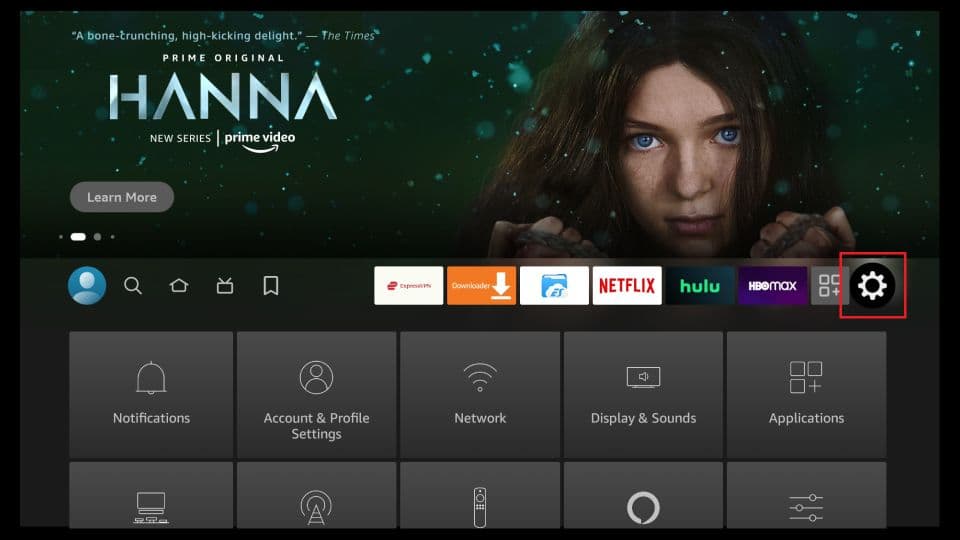
Step 1: Navigate to Settings
First, we need to allow your Fire TV device to install applications from outside the official Amazon Appstore.
From the main Home Screen, navigate to the Settings icon (the gear symbol ⚙️).
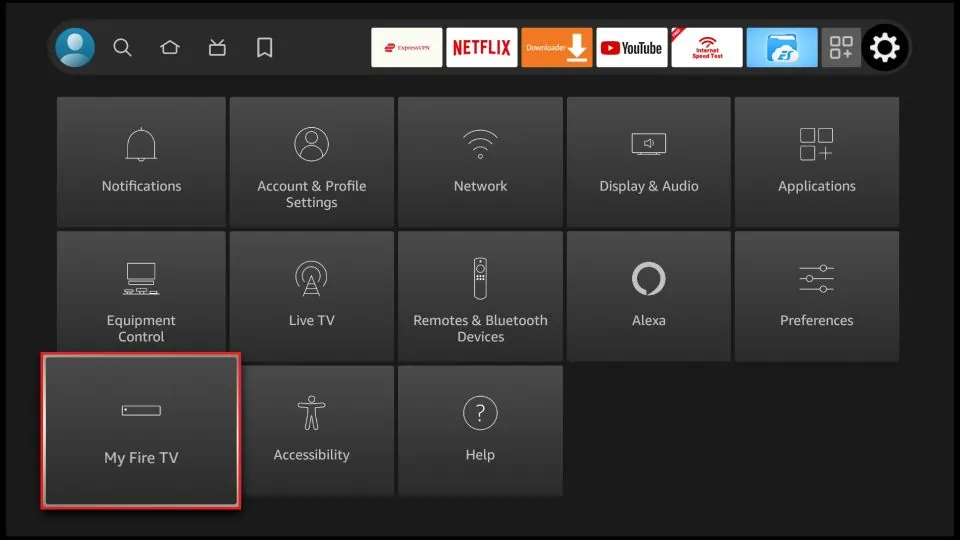
Step 2: Select My Fire TV
In the Settings menu, find and select the 'My Fire TV' option.
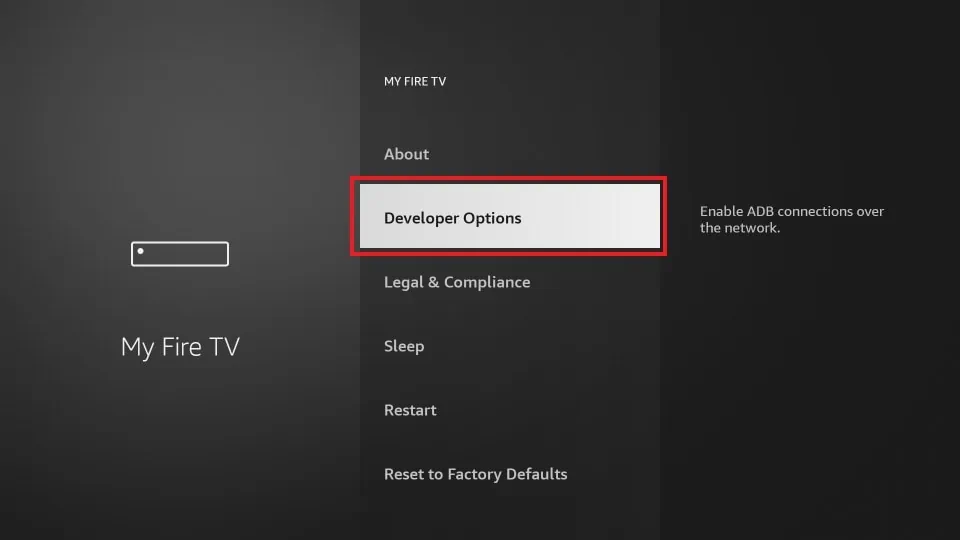
Step 3: Choose Developer Options
Next, choose 'Developer Options'.
Important Note: If you do not see 'Developer Options,' select 'About' first. Then, click on your device's name (e.g., Fire TV Stick 4K) about 7 times in a row until a message appears saying, 'No need, you are already a developer.' Go back one screen, and 'Developer Options' will now be visible.
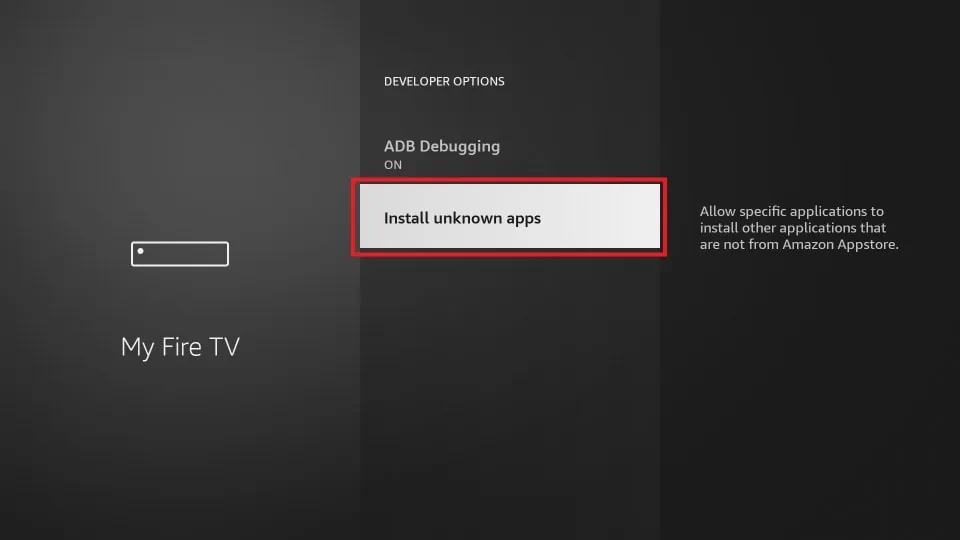
Step 4: Select Install unknown apps
Inside the Developer Options menu, select the 'Install unknown apps' option.
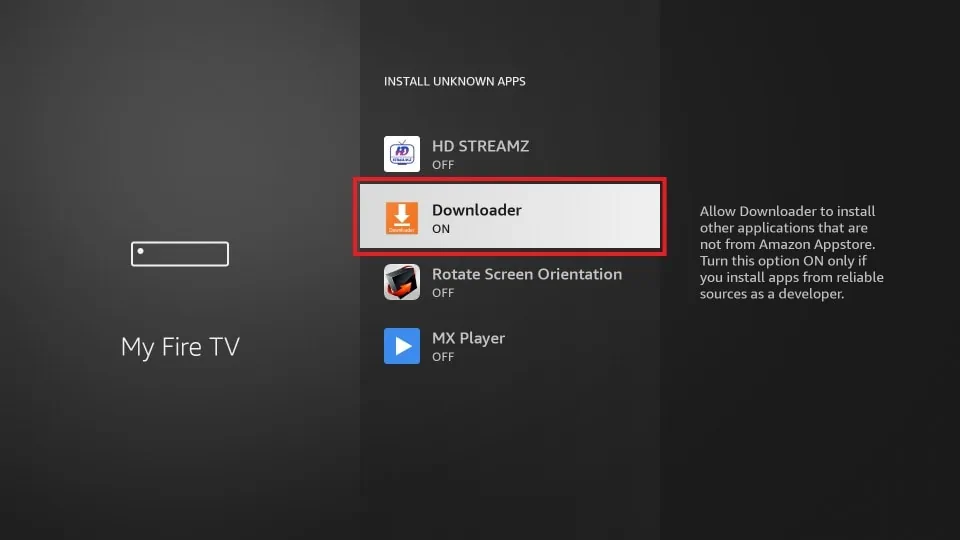
Step 5: Enable Downloader
Find the Downloader app in the list. Select it to change its status from OFF to ON. Your device is now prepared. You will not need to repeat these steps again.
Part 2: Installing Our Application
Step 6: Open the Downloader App
Now we will use the Downloader app to install our service.
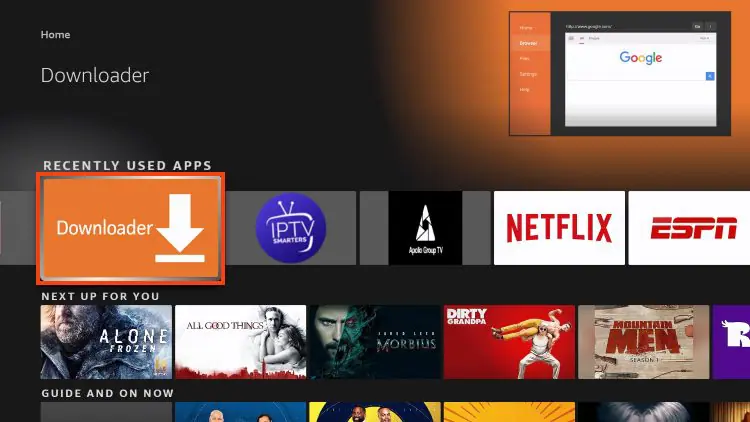
Return to the Home Screen and open the Downloader app. (If you don't have it, please search for 'Downloader' and install it first).
Step 7: Allow Permissions
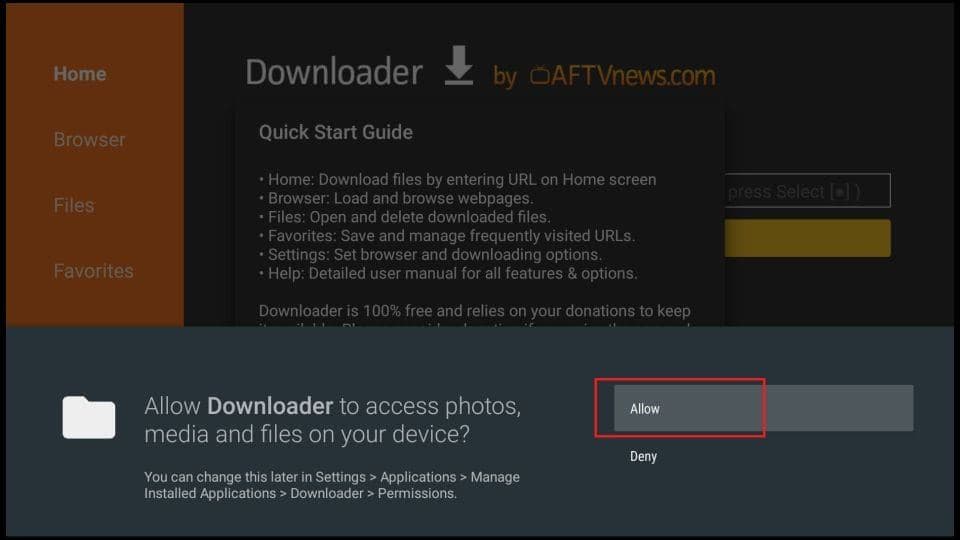
If you are opening Downloader for the first time, a prompt will appear asking for permission to access files. Click 'Allow'. This is necessary for it to save the application file.
Step 8: Navigate to URL Entry Box
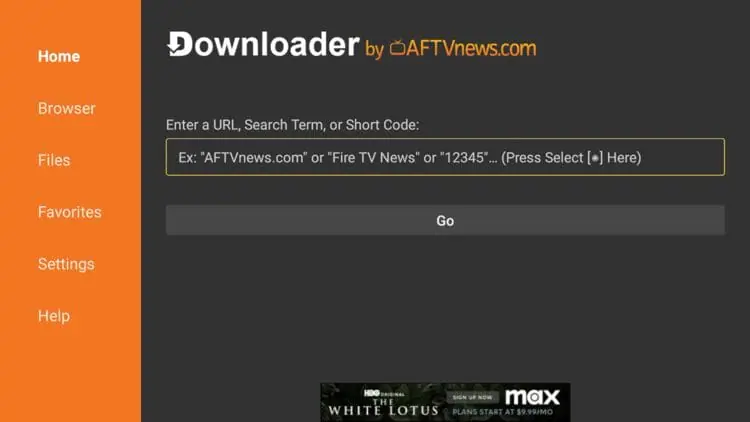
You will now see the Downloader home screen with an entry box for a URL. This is where you will type the download address.
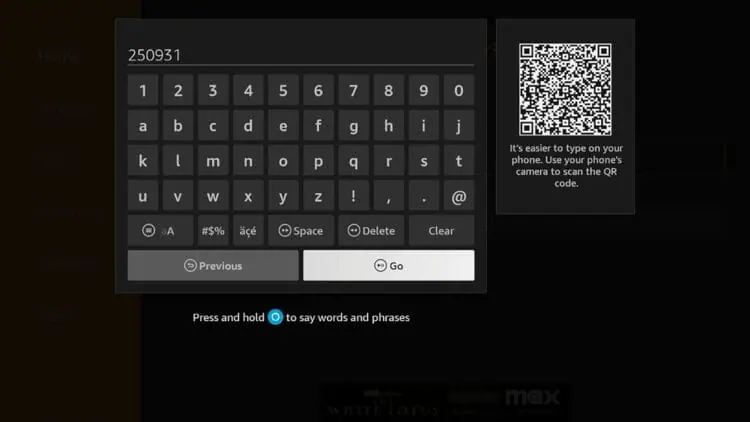
Step 9: Enter Our App Code
Using the on-screen keyboard, carefully enter our exclusive short code into the box. This code automatically directs you to the correct download link. After typing the code, click the 'Go' button.
Our special code is: [Enter Your Code Here]
Step 10: Wait for Download
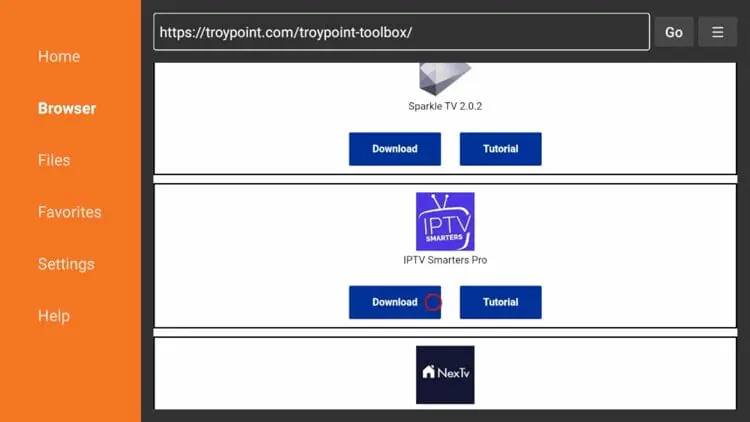
Scroll down to find IPTV Smarters Pro and click Download.
Step 11: Install the Application
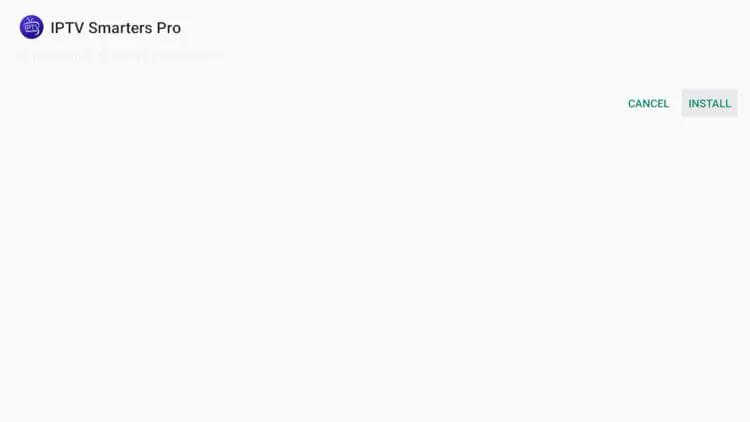
Once the download is complete, the installation screen will pop up automatically. Use your remote to navigate to and click the 'Install' button.
Step 12: Confirm Installation
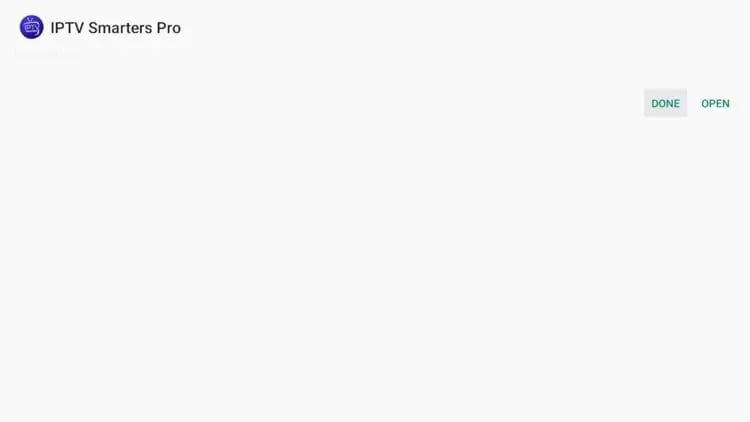
When the installation process is finished, a confirmation message will display 'App Installed'. It is best to click 'Done' for now. (Do not click 'Open' yet).
Step 13: Delete the Installer File
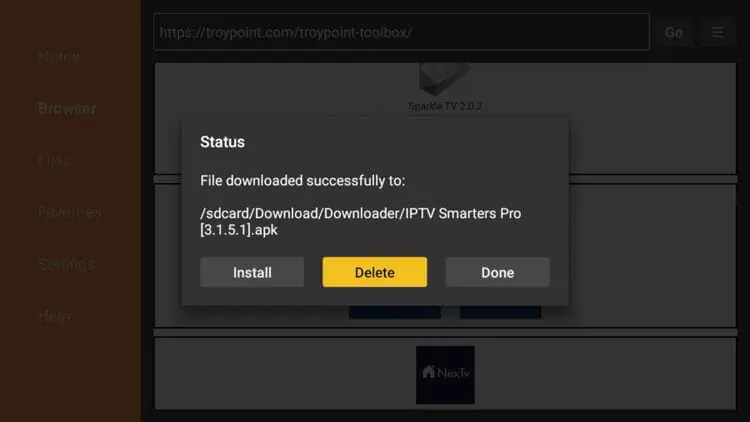
You will be automatically taken back to the Downloader app. A pop-up will appear with the installation file details, asking what you want to do next. Click 'Delete' to save valuable space on your device.
Step 14: Confirm Deletion
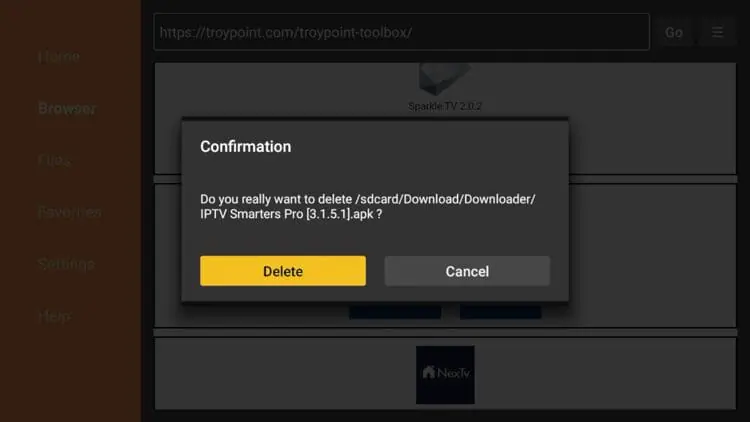
Click 'Delete' a second time to permanently remove the installation file. Our application is now successfully installed on your device.
Part 3: Logging In & Starting to Watch
Step 15: Find and Open Our App
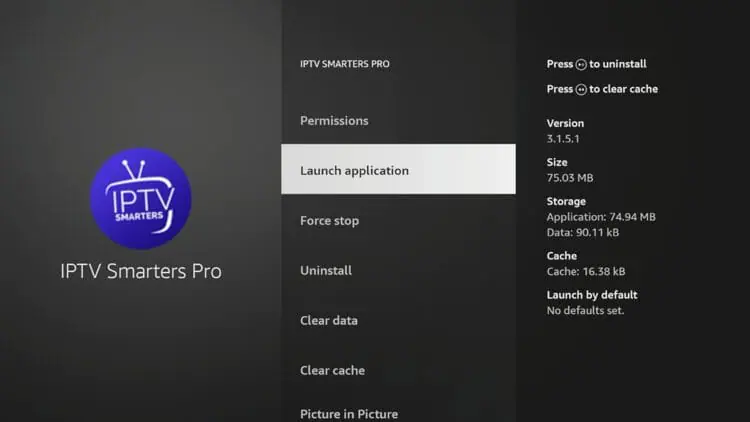
Now that the app is installed, let's log in with your subscription details. Go to your Fire TV's Home Screen. Navigate to the 'Your Apps & Channels' section and find our new app's icon. Click to open it.
Step 16: Select Login Method
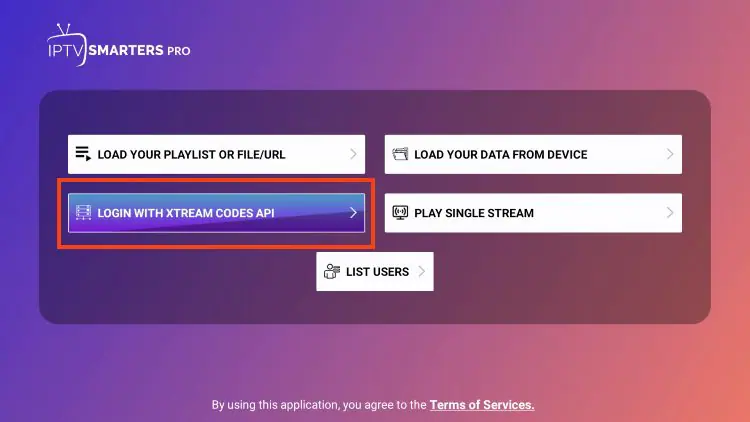
When you open the app for the first time, you will likely see several login options. Please select the option that says 'Login with Xtream Codes API' or 'Add New User'.
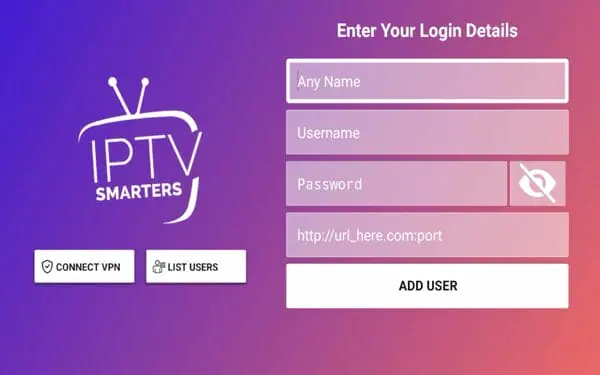
Step 17: Enter Your Credentials
A new screen will appear with four fields. Here you must carefully enter the subscription details we sent to you.
- Any Name / Playlist Name: You can write any name you like here (e.g., My Home TV).
- Username: Enter the exact username we provided.
- Password: Enter the exact password we provided.
- URL/Host: Enter the server URL we provided, starting with http://.
Important: Please double-check every character you type. A small mistake in any of these fields will result in a login error.
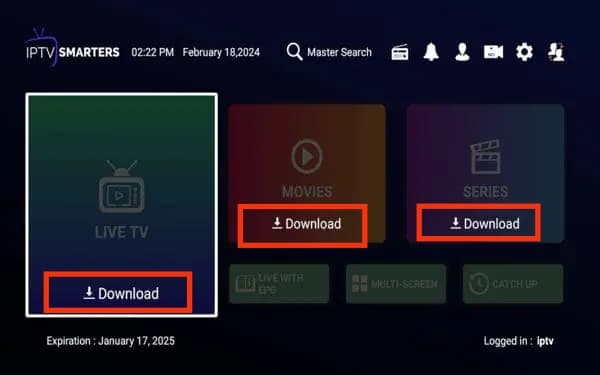
Step 18: Loading Content
The app will now begin to load the channels, movies, and series associated with your account. This process may take a minute or two. Please be patient.
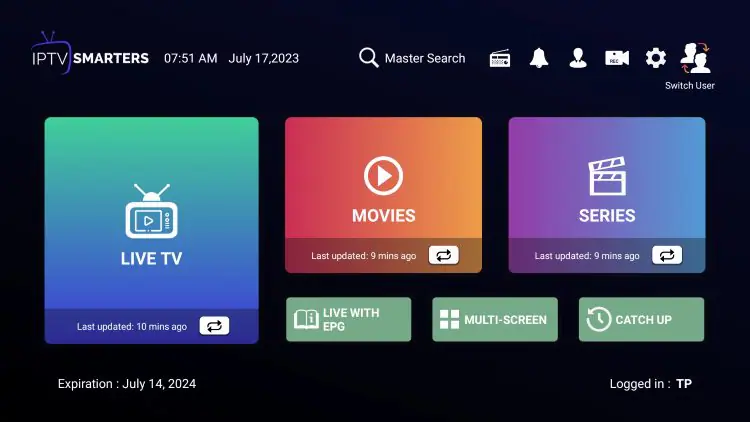
Step 19: Enjoy the Show!
Congratulations! You are now logged in. You will see the main dashboard of the app. You can now explore Live TV, Movies, and Series. Enjoy the show!
Installation Complete!
Congratulations! You have successfully set up the IPTV app on your Amazon Firestick device. Enjoy your streaming experience!